Configure Microsoft 365
0Flaw sends phishing emails. Without proper configuration, some of these emails would not pass Microsoft's spam filter. This would be regrettable as it would compromise your campaign statistics.
The following guide explains how to avoid this phenomenon, to allow your campaigns to run smoothly.
Did you know? Unlike 0Flaw, hackers would have no problem bypassing your spam filter by exploiting legitimate email servers, which 0Flaw cannot afford to do.
Create a bypass rule
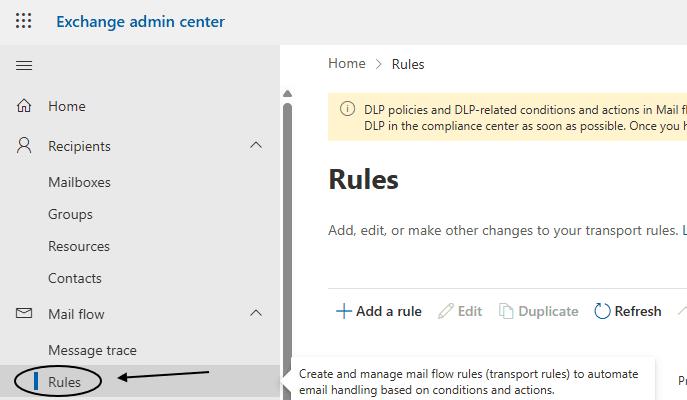
To allow 0Flaw to function, you will need to add the IP address we use to send our emails. Go to the Microsoft Exchange settings and open Mail flow > Rules.
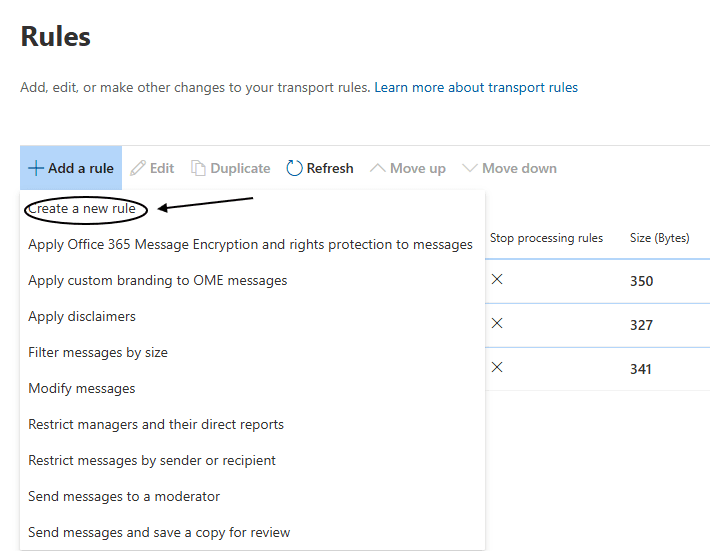
Now click on Add a rule > Create a rule
We will use the IP address 159.183.234.18 to send our emails. This IP address is dedicated to 0Flaw and therefore cannot be used by third parties.
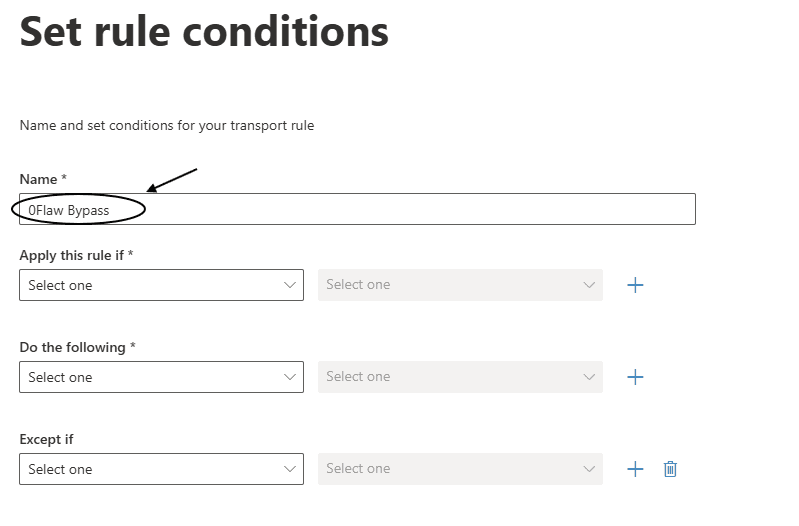
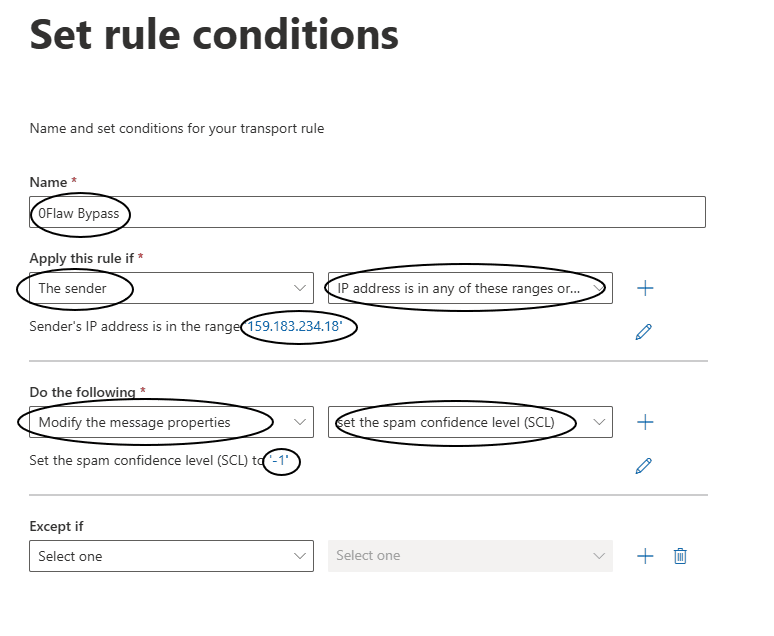
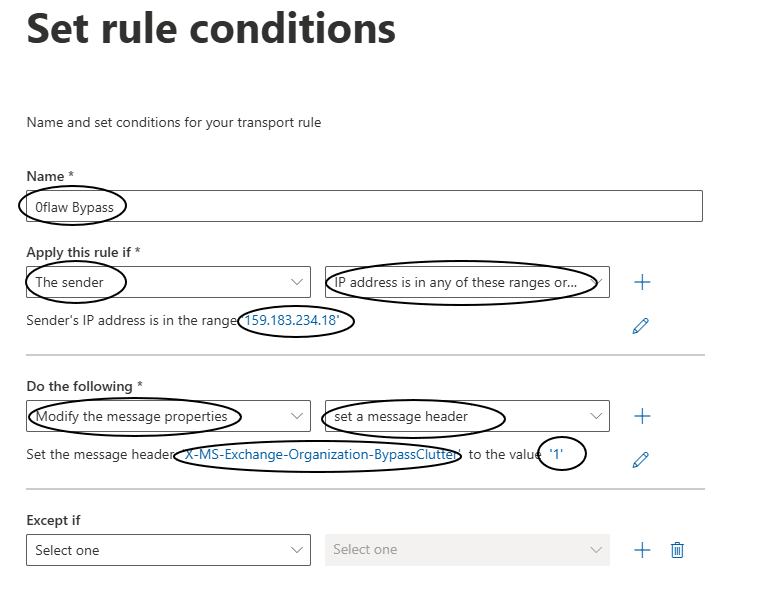
Start by naming your gateway: the name doesn't matter much, so call it 0Flaw bypass for example.
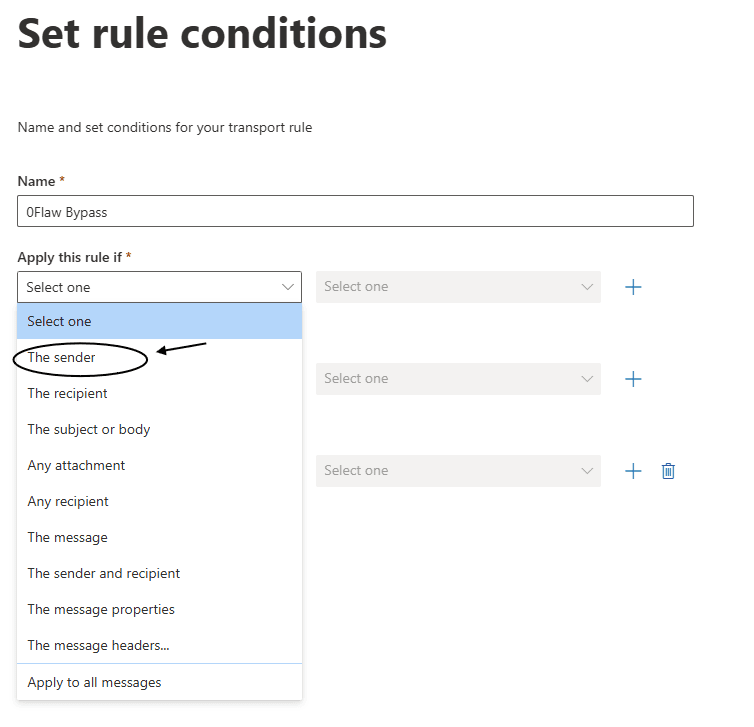
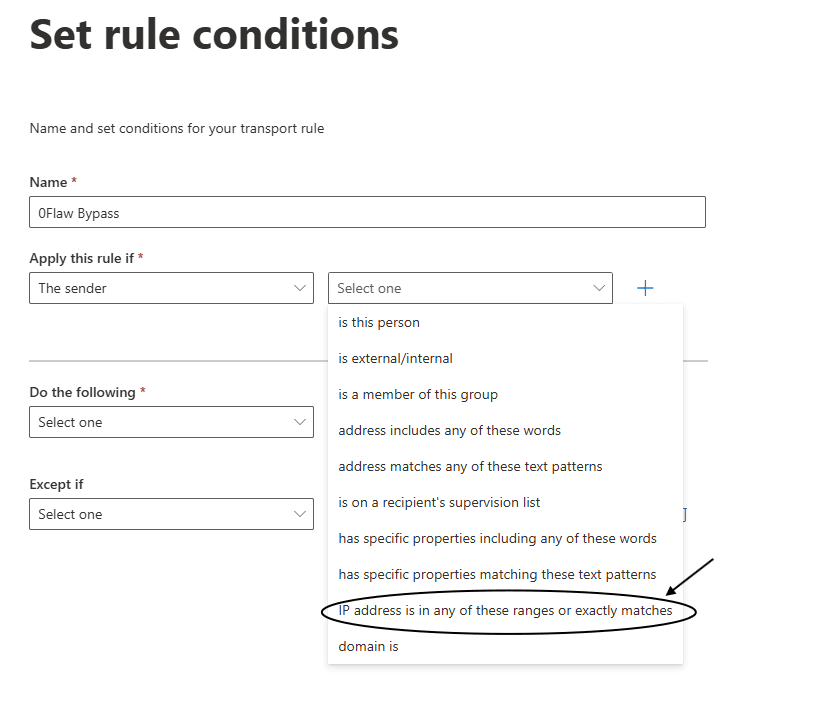
To apply the rule only to this IP 159.183.234.18, in the Apply this rule if… list, select The sender.
Then The sender's IP address is in one of these ranges or matches exactly.
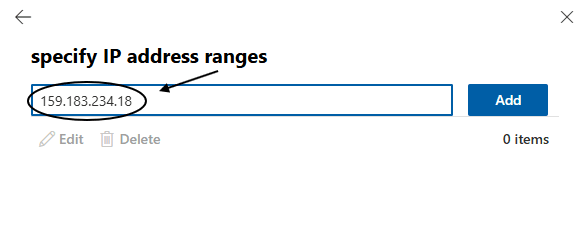
Add the IP 159.183.234.18.
Then
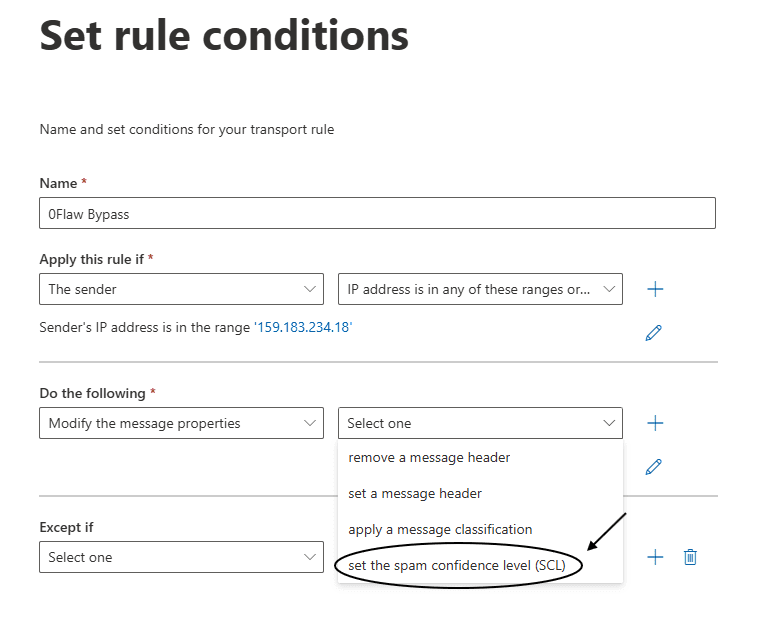
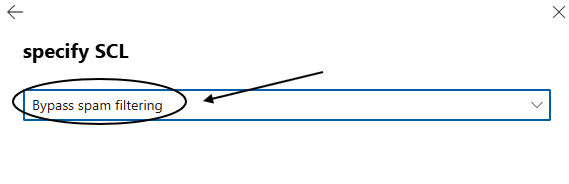
You should have a rule like this:
Add SkipSafeLinksProcessing header
From time to time, some links sent by 0Flaw are marked as suspicious. This is why we suggest adding an additional header to avoid this phenomenon.
For this, add a rule as before then:
Select Modify message properties… then define a message header.
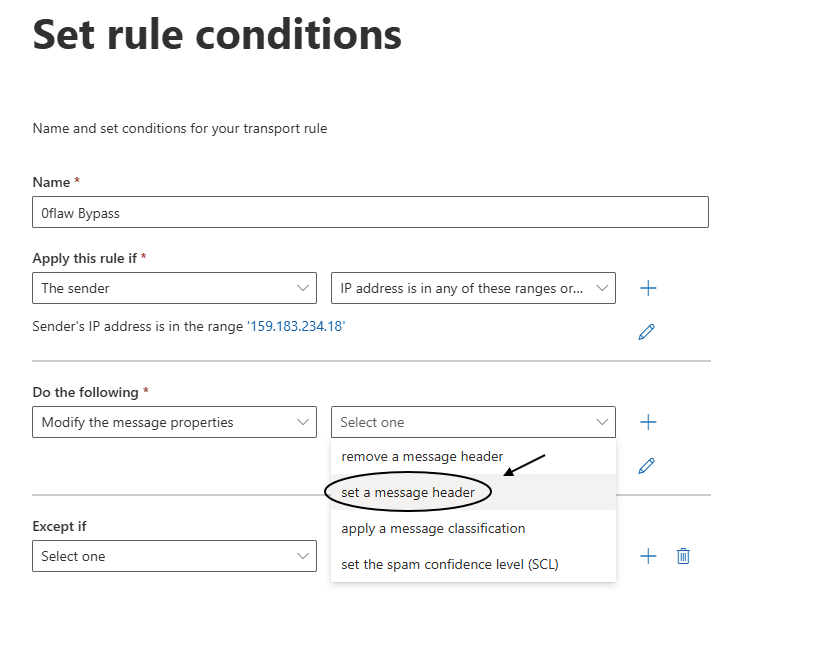
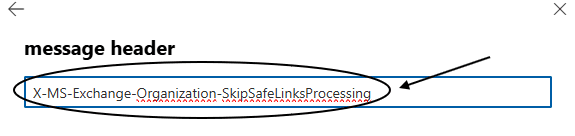
Then on the right, call the property X-MS-Exchange-Organization-SkipSafeLinksProcessing.
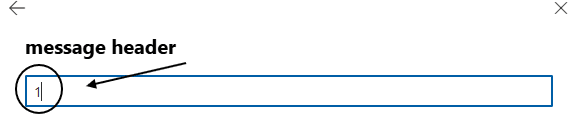
Set the value to 1.
You're all set, so don't forget to save the rule.
Add BypassClutter header
Some organizations offer their employees the possibility to use a "clutter folder" in newer versions of Outlook and Exchange.
Add another rule like the previous one with:
property: X-MS-Exchange-Organization-BypassClutter
value: 1
Enable Phishing Simulation option
Microsoft recently released an additional option that allows 0Flaw phishing emails to pass very easily. Go to the Advanced delivery options and click Edit.
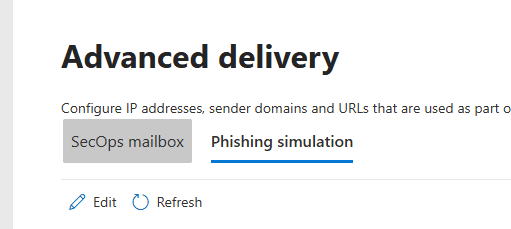
This will open a side panel. You will need to enter both the domain name yourprotectionidentity.com that we use to send phishing emails and the IP address 159.183.234.18. Finally, add the domains hosting our phishing pages.
These domains have been generated for you by the platform and should be used instead of domain1.com, domain2.com...
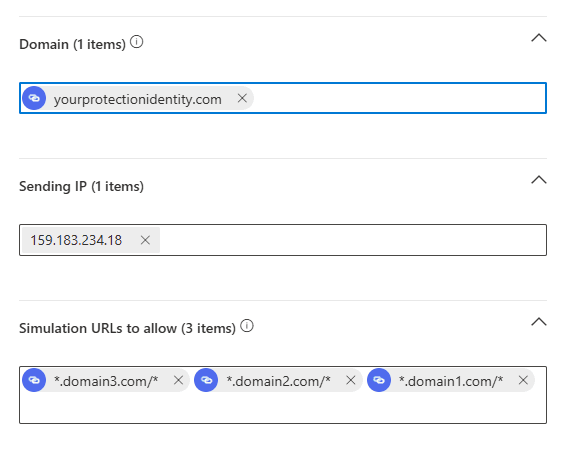
Once added, click Save
Modify the green/red list
To fully authorize emails sent from our sending IP, we need to add one last parameter, for this go to this page and click Add.
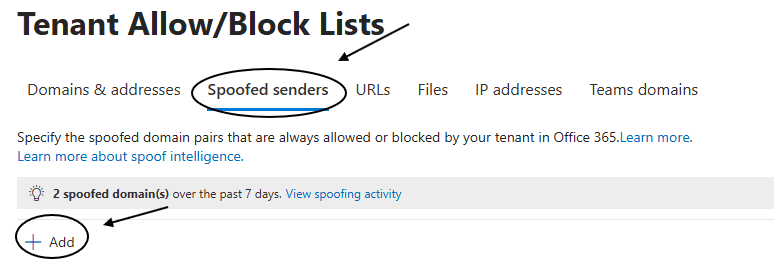
This will open a side panel. You must enter the following information *, 159.183.234.18 This allows authorizing all senders from 0Flaw's sending IP.
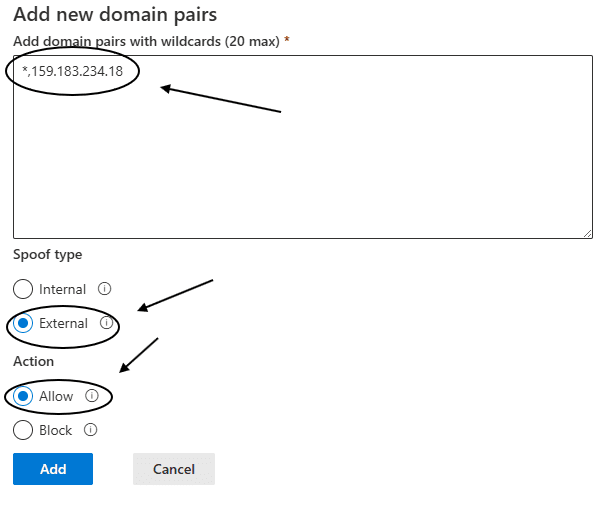
Once added, click Add and you're done!
Add 0Flaw phishing page URLs to Safe Links
To avoid blocking our 0Flaw phishing URLs by Microsoft Defender, we need to add a configuration in Safe Links, Navigate to this page and click Create.
If the page is empty, you probably don't have Microsoft Defender, you can skip to the next step.
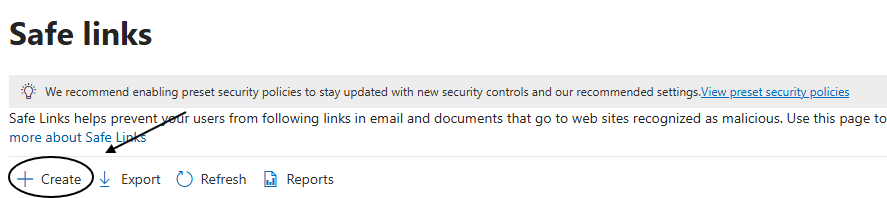
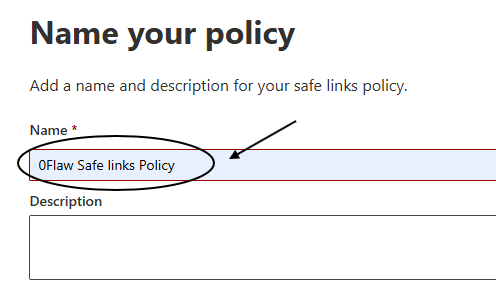
Once you have clicked, a page opens, you must choose a name for your safe links policy, for example "0Flaw Safe links Policy".
Add the audience you want to send phishing emails to in the following section, it can be users, groups or domains.
Then, take the time to carefully follow these settings in the image below 👇.
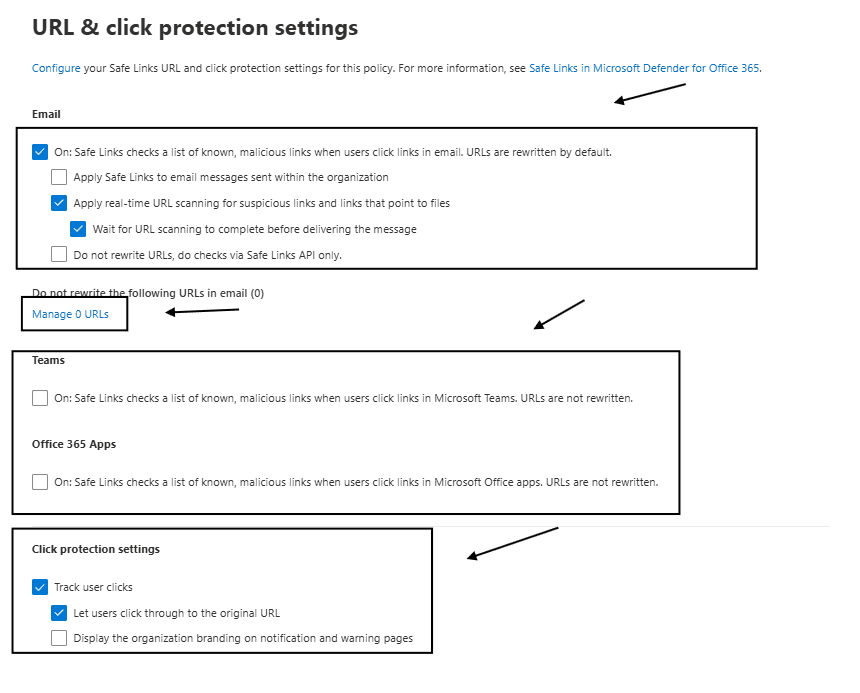
Click on "Manage URL" and add the domains in the image below 👇
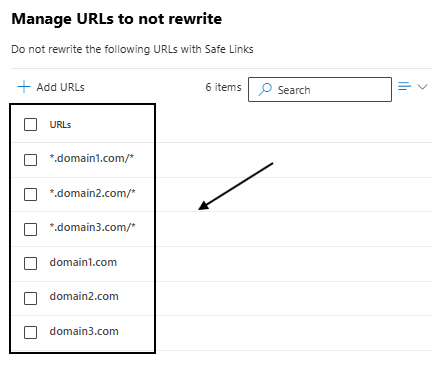
These domains have been generated for you by the platform and should be used instead of domain1.com, domain2.com...
Then click "next" and choose default for notification.
Then click "next" and click "finish".
Test the configuration
Now that you have configured Microsoft Outlook to receive 0Flaw emails, return to the platform and test the configuration.
Note: the configuration may take a few minutes to propagate. If everything is properly configured and you encounter a problem, wait 10 minutes and try again.
Speak with an integration expert
Follow these steps to optimize your configuration and ensure the success of your phishing campaigns.