Configure Google Workspace
0Flaw sends phishing emails. Without proper configuration, some of these emails would not pass Google's spam filter. This would be regrettable as it would compromise your campaign statistics.
The following guide explains how to avoid this phenomenon, to allow your campaigns to run smoothly.
Did you know? Unlike 0Flaw, hackers would have no problem bypassing your spam filter by exploiting legitimate email servers, which 0Flaw cannot afford to do.
Open Google Workspace
To allow 0Flaw to function, you will need to add the IP address we use to send our emails. Go to the Spam, phishing and malware settings of Google Workspace administration to add it.
Open Google Workspace →Add the IP address
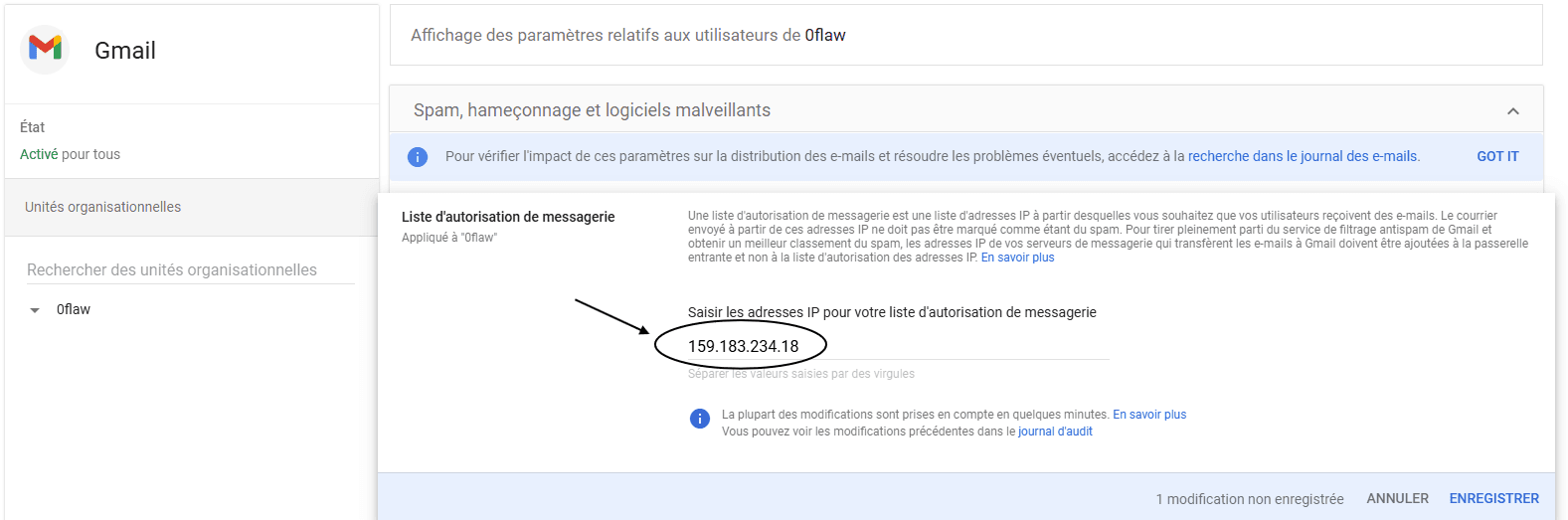
We will use the IP address 159.183.234.18 to send our emails. This IP address is dedicated to 0Flaw and therefore cannot be used by third parties.
In the Mail whitelist section, add the IP and don't forget to save.
Configure the gateway
You will find 2 sections below the Inbound gateway section. Go there and open the section.
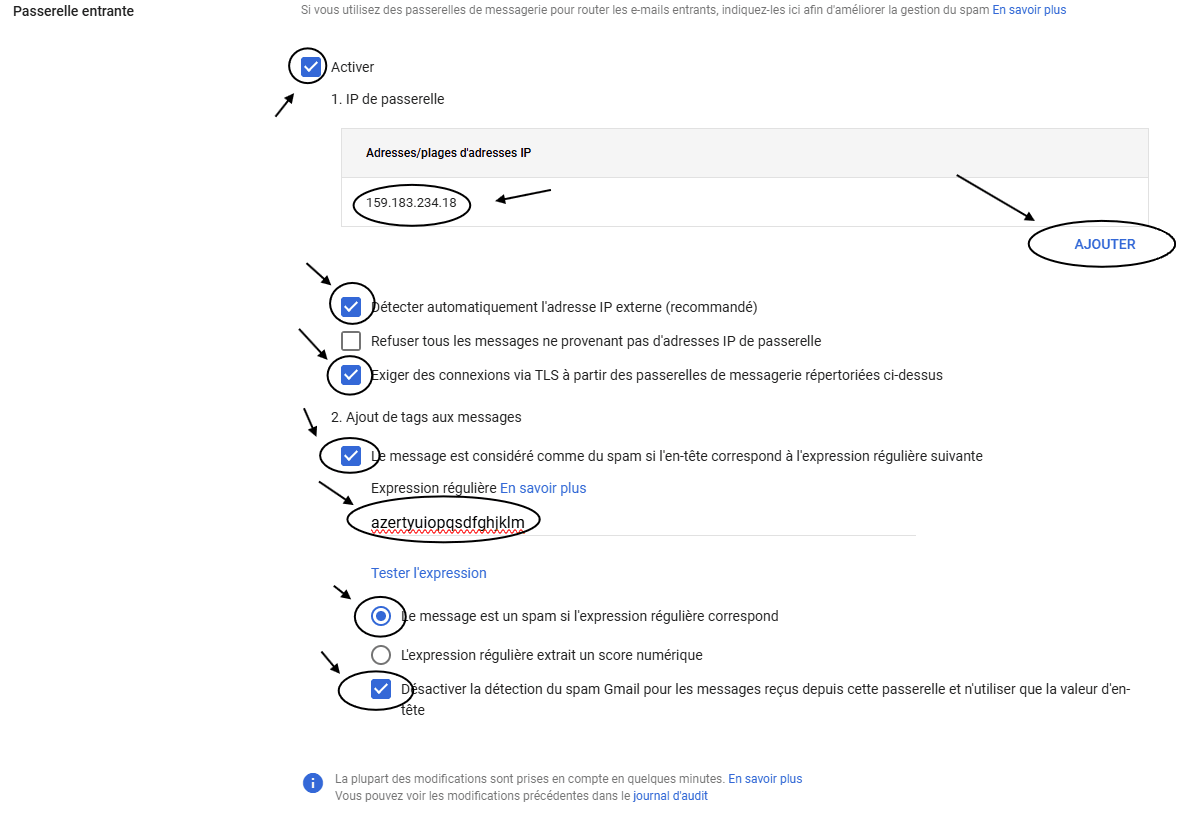
First, start by enabling the gateway. Then, add the IP 159.183.234.18. You can check the Require TLS connections box, and then you MUST check the Message is considered spam if… box just below.
In the Regular expression field, enter anything, for example azertyuiopqsdfghjklm.
Finally, check Disable Gmail spam detection, then click Save to save.
Warning: if you accidentally check at this step Reject all messages not from…, all incoming emails will be rejected.
Hide the gray warning
It is very likely that the following alert will be displayed in Gmail above the emails we send:

Fortunately, it's very easy to get rid of it. We send our emails from the domain name yourprotectionidentity.com, we will be able to configure Google Workspace to mark as legitimate all emails from this domain name.
To do this, first we will create a new list on the Manage address lists configuration page. Open this page then click Add an address list. The following window appears:
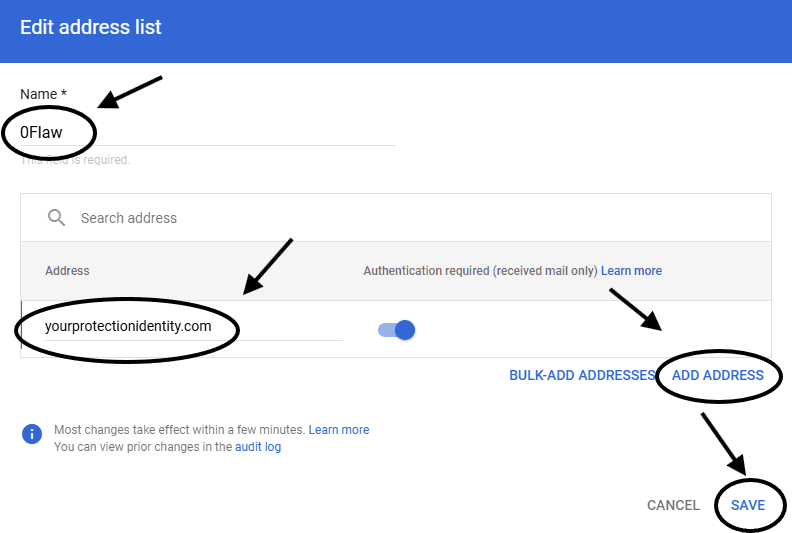
Configure this window by adding the domain name yourprotectionidentity.com. Then save, close this configuration page and reopen the Spam, phishing and malware settings. We will add this list we just created in the Spam and Blocked senders sections.
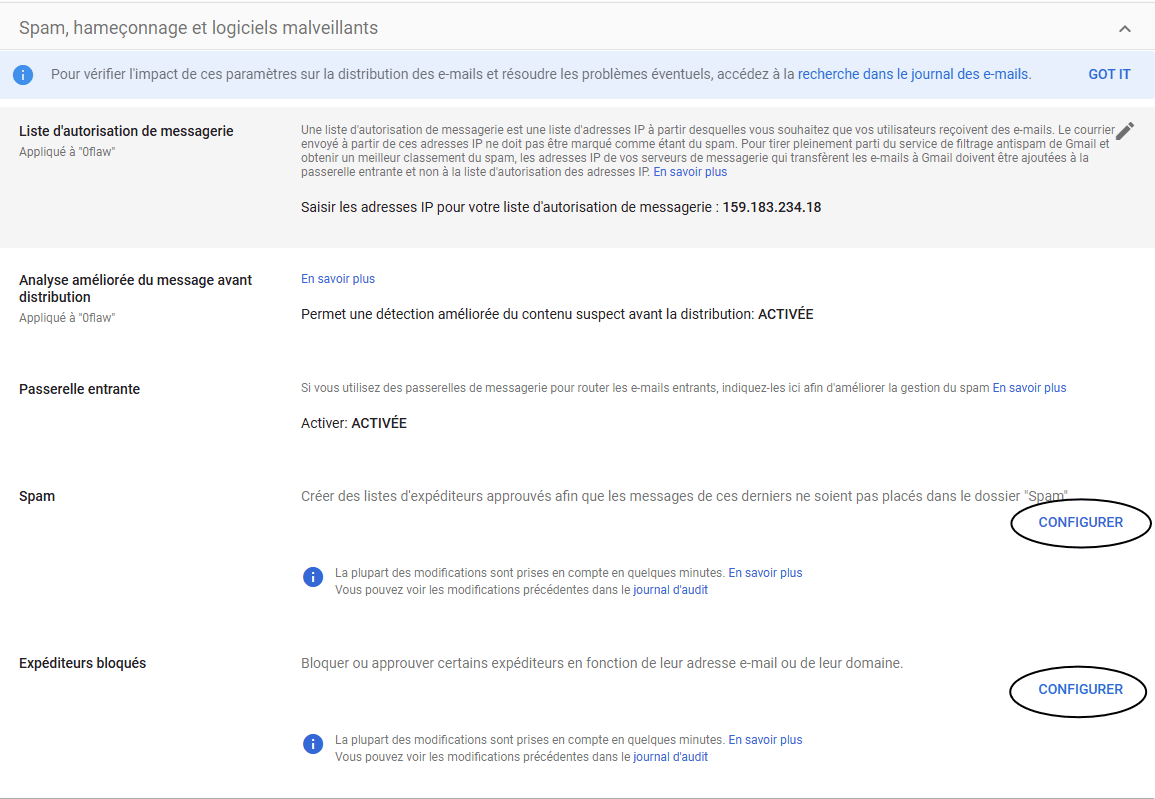
First, in the Spam section, click the Configure button, then this window appears. Configure it as follows:
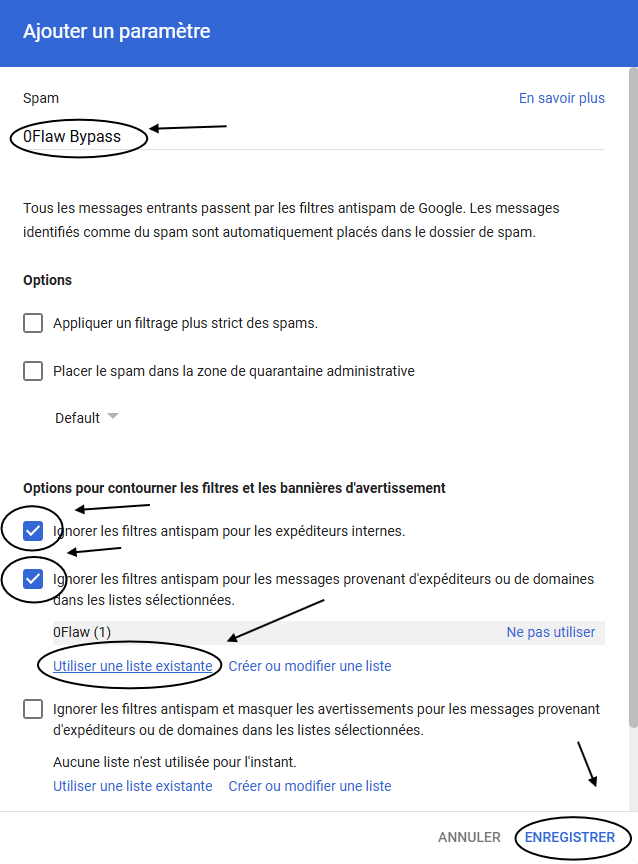
And don't forget to save.
Then, in the Blocked senders section, click the Configure button and configure the window this way:
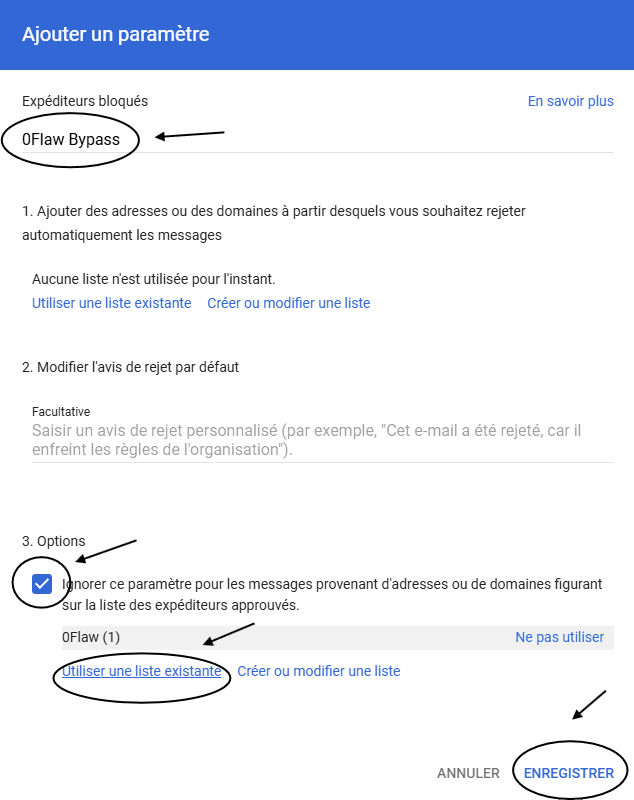
And again, don't forget to save. In a few minutes, the gray alert will have disappeared.
Test the configuration
Now that you have configured Google Workspace to receive 0Flaw emails, return to the platform and test the configuration.
Note: the configuration may take a few minutes to propagate. If everything is properly configured and you encounter a problem, wait 10 minutes and try again.
I still have the gray warning (optional)
If you still have the gray warning even though you have followed this guide step by step, it's probably because you have enabled the Enhanced message analysis before delivery feature. It is enabled by default if you are not on Google Workspace's basic plan.
Unfortunately, disabling it would reduce your workspace protection. However, you can temporarily disable it while launching your phishing campaign, then re-enable it right after.
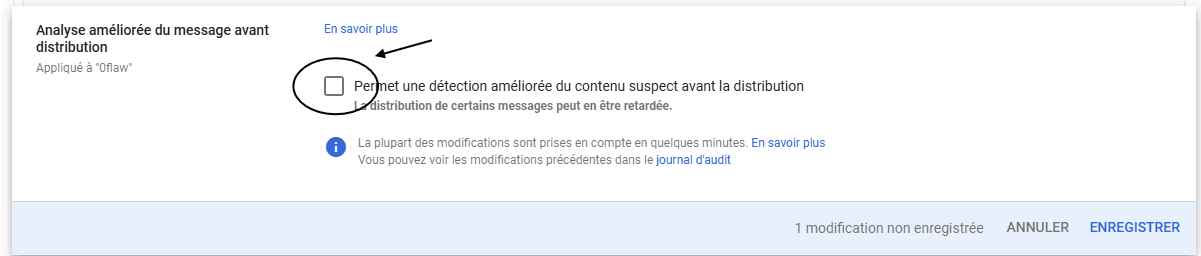
For this, go to the second section of the Spam, phishing and malware settings of Google Workspace administration. Then, uncheck the box and save. Then launch your campaign. Wait a few minutes, then reactivate this setting.
Because emails are evaluated by Google upon receipt, there's no need to keep this setting disabled once the campaign is launched.
Cut alerts (optional)
A new Google Workspace feature will notify you if your settings are suspicious.
These emails tend to be quite repetitive, and yet they are easy to cut. Open the security settings, and click the Edit rule button.
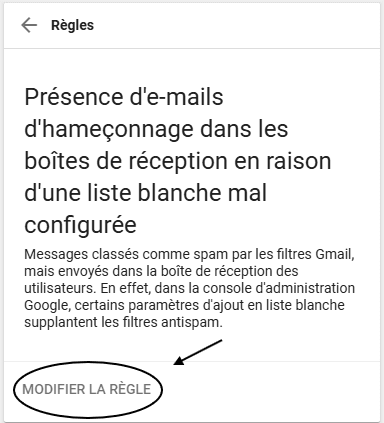
Then click 2 times on Next, until the 3rd step Actions, and uncheck Send to alert center.
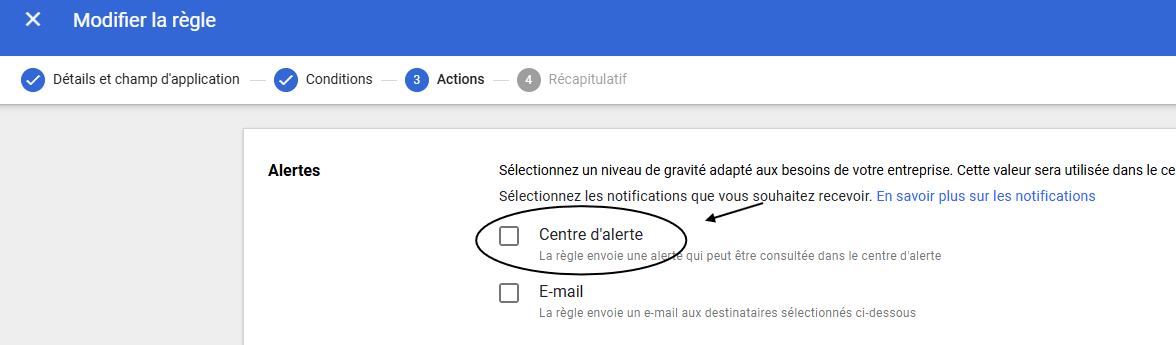
Then save the edited rule and everything should work. You may receive additional notifications because of 0Flaw, and you can repeat this operation for other rules if you wish in the alert center.
Speak with an integration expert
Follow these steps to optimize your configuration and ensure the success of your phishing campaigns.